2 quick ways to convert JPG to Text
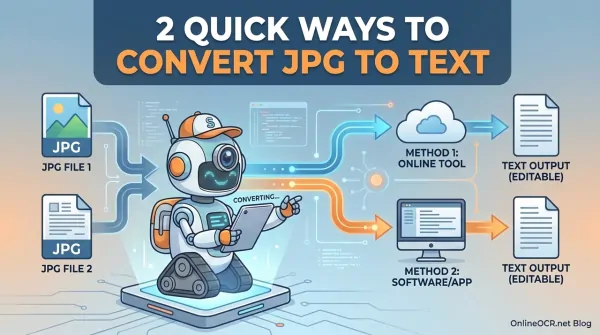
Ever stared at an image, wishing you could just grab the text right out of it?
Whether it's a scanned document, a screenshot of important notes, or a research paper snippet, getting that text into an editable format like TXT is a game-changer.
But for a truly accurate conversion from JPG to Text, you need methods that are smart enough to understand both the visual and textual magic happening within your images.
No one wants to wrestle with complicated software or confusing steps. We believe that converting your JPGs to text should be as smooth as butter, empowering everyone—from students juggling assignments to developers extracting data and home users organizing their digital life—to perform this task with absolute ease.
🚀 Stop Retyping, Start Editing! 🚀
Caught in the "Manual Typing" trap? Whether it’s a photo of a whiteboard, a scanned receipt, or a screenshot of a document, OnlineOCR.net is the ultimate tool to extract your data and set it free.
Why OnlineOCR.net is the #1 JPG to Text Solution?
- Lightning-Fast Conversion: Upload your JPG, PNG, or BMP and get clean, editable plain text in seconds.
- Superior Accuracy: Our OCR engine handles even low-contrast photos, ensuring every character is captured correctly.
- 46+ Languages Supported: From Latin scripts to Chinese, Japanese, and Korean, we recognize text across the globe.
- Total Convenience: No software to install, no accounts to create. It’s 100% web-based and mobile-friendly.
- Privacy First: Your files are processed over a secure HTTPS connection and are automatically deleted from our servers once you're done.
🚀 How to Convert JPG to Text in 3 Easy Steps:
- Upload your JPG file.
- Select the language of the text.
- Convert and copy your text or download it as a file!
Stop squinting at images. Copy, paste, and edit your text instantly.
👉 Get Started for FREE at OnlineOCR.net 👈
It's totally normal to have questions when diving into something new, or even when looking for a better way to do something familiar. We hear you! Many of you are wondering:
"Please Help! How do I convert my JPGs to editable text?"
“I'm drowning in JPGs – scanned lecture notes, screenshots of code, important document snippets – and I desperately need the text from them. I want to convert JPG to text but
I'm lost! Is there a reliable, perhaps even magical, method out there that can save me from endless retyping?”
This common cry for help perfectly illustrates a widespread challenge: finding truly effective and reliable techniques for converting JPG images into editable text files. You're not alone in this quest!
Good news! You've landed in the right place. This article is your ultimate guide, outlining proven, step-by-step methods to effortlessly extract text from your JPG images and transform them into versatile TXT format.
Ready to reclaim your time and unleash the power of your image-locked text? Let's dive in and explore the top methods for truly seamless JPG to Text conversion!
Method 1: The Google Drive Magic Trick (Manual Conversion)
First up, let's explore a handy, built-in solution many of us already use: Google Drive! It's a fantastic option for quick, single-file conversions. Here’s how to manually transform your JPG into a Text File using its clever capabilities:
-
Step 1: Get Started. First things first, hop into your Google Drive account. Once you're in, look for the My Drive menu on the left and give it a click.
-
Step 2: Upload Your Image. From the My Drive menu, select File Upload. Browse your computer, pick out that JPG file you want to convert, and hit
Open. Google Drive will work its magic and upload it.
-
Step 3: Find Your File.
After the upload, head over to the
Recent
section (or navigate to where you uploaded it). Spot your newly uploaded JPG file, then right-click on it.
-
Step 4: Open with Google Docs.
A menu will pop up. Hover over
Open With
, and then select
Google Docs
. This is where Google's Optical Character Recognition (OCR) technology kicks in, attempting to read the text from your image!
-
Step 5: Download Your Text.
Once your JPG opens in Google Docs (you'll see the image at the top and the extracted text below it), go to the
File
button in the top-left corner and select
Download
.
-
Step 6: Choose TXT Format.
From the list of download options, simply choose the
TXT
option. Voila! Your text file will download, ready for editing and use.
This method allows you to convert JPG to text file easily, but it’s limited to processing one image at a time.
For students with stacks of scanned notes, researchers processing dozens of historical documents, or developers needing to extract data from countless screenshots, this manual, one-by-one approach can quickly become a frustrating bottleneck. Let's dive deeper into why this manual method might not be your best friend for bulk conversions.
The Hurdles: Why Manual JPG to text Conversion Can Be a Headache
While Google Drive is a lifesaver for individual files, when you scale up, its limitations become glaring. Here's why relying solely on the manual method can really slow you down:
- One-by-One Only: It's built for individual images, not for tackling a whole folder of them. No bulk processing here!
- Confusion & Duplicates: Juggling multiple files manually can quickly turn into a messy, confusing process, often leading to accidental duplicate files or missed conversions.
- A Major Time Sink: Imagine converting dozens, or even hundreds, of JPGs one at a time. It's incredibly time-consuming and drains your productivity.
- Complexity Creep: What starts as a simple task for one file becomes a complex, lengthy, and error-prone chore when repeated sequentially for many.
- Accuracy Isn't Guaranteed: While Google's OCR is good, manual methods often lack advanced features to ensure perfect data accuracy, especially with complex layouts or lower-quality images. There's a real risk of losing crucial content.
- Not for Speed Demons: If you need quick, efficient, and reliable bulk JPG to Text conversions, this method simply won't cut it.
Clearly, these drawbacks can turn a simple task into a monumental headache. If you're serious about efficiency and accuracy, especially with larger volumes of images, it's time to level up. You need a solution that's built to handle bulk JPG
to Text File conversion with grace and power.
Method 2: The Expert's Choice – OnlineOCR.net
When you're ready to tackle those image piles like a pro, the unanimous recommendation from experts (and anyone who values their time!) is to use a dedicated, robust solution.
Enter the OnlineOCR.net JPG to text Conversion Tool.
This powerhouse software isn't just about converting JPG to text; it's a versatile workhorse that efficiently exports multiple images to a whole array of formats.
Your Workflow, Supercharged: Steps to Convert JPG to TEXT with the Automated Tool
Ready to experience true efficiency? Here’s your straightforward guide to converting JPG to Text File using this smart, automated tool. Get ready to save some serious time!
-
Step 1: Load Your Images.
First, download and launch the software. You'll then have the flexibility to choose: click
Add File(s)
to pick individual JPGs, or go for
Add Folder(s)
to import an entire directory of images at once. Talk about efficiency!
-
Step 2: Choose Your Destination.
Next, you'll want to tell the software where to save your newly converted text files. Simply click the
Change
button and select your preferred output location. Keep your digital workspace tidy!
-
Step 3: Select Your Output.
In the
Export Format
dropdown, find and select
Text.
This tells the tool exactly how you want your image data transformed.
-
Step 4: Convert!
With everything set, all that's left is to hit the big
Convert
button. Watch as the software swiftly processes your JPGs, turning them into editable text files in a flash!
And just like that, this automated utility transforms what could be a tedious chore into a smooth, efficient, and even enjoyable process. Say goodbye to manual headaches, especially when you're tackling bulk JPG to Text conversions!
Beyond Basic: The Power-Packed Features of This Automated Software
What makes the JPG Conversion Tool truly stand out? It's packed with intelligent, powerful features designed to make your JPG to Text File conversion not just seamless, but truly superior. Let's explore what this tool brings to the table:
- Versatile Format Support: It's not just a one-trick pony! This tool supports a wide array of output formats beyond *.TXT, including *.DOC, *.XLS.
- Preserves Visual Integrity: Worried about your images losing their crispness? Fear not! The software intelligently maintains the original image quality, even when converting to TXT or other formats.
- Smart Previews: Before you commit to conversion, you can preview your images right within the software. This ensures you're extracting exactly what you need, every time.
- Zero Data Loss Guarantee: Accuracy is paramount. This tool is engineered to ensure absolutely no data loss during the JPG to text conversion process, preserving every character and detail.
- Flexible Output Options: Need all your extracted text in one master TXT file? Or prefer separate TXT files for each image? The tool offers flexible options to suit your organizational style.
The FAQ Zone
Can I really convert a whole batch of JPGs to TXT simultaneously?
Absolutely, with the help of OnlineOCR.net! This is where automated tools truly shine. While manual methods like Google Drive are great for single files, dedicated software like the OnlineOCR.net JPG Conversion Tool is specifically designed to let you convert multiple JPGs to Text Files in one swift, bulk operation.
Say goodbye to endless clicking!
How reliable is Google Drive's method for JPEG to Text conversion, really?
For straightforward, single images, Google Drive's Optical Character Recognition (OCR) is generally quite reliable. However, it's important to set expectations: it may struggle with more complex layouts, handwritten text, or lower-quality images. And as we've discussed, it's definitely not built for bulk conversions, where it can become prone to errors and inefficiencies.
Will the OnlineOCR.net conversion tool actually preserve my text's accuracy?
Yes, absolutely! This is one of its core strengths. The OnlineOCR.net conversion tool employs advanced Optical Character Recognition (OCR) technology specifically engineered to deliver high accuracy when converting JPEG to Text. Its primary goal is to minimize data loss and ensure your extracted text is as faithful to the original as possible.
Is this tool just for TXT, or can it handle other formats too?
Absolutely, and that's another reason why it's such a versatile asset!
The OnlineOCR.net isn't limited to just TXT. It proudly supports a range of output formats, including DOC and XLS, offering you incredibly flexible conversion
options for all your digital needs.
Wrapping It All Up: Your Path to Effortless Text Extraction!
So, there you have it! Navigating the world of "JPG to Text" conversion, especially when you're dealing with a mountain of images, can indeed feel like a challenge without the right allies. This comprehensive guide has walked you through two distinct paths: the handy, manual approach using Google Drive, and the powerful, automated solution offered by the OnlineOCR.net.